My Guiding Pilot
Search Categories
Popular Guides
Use search to find learning guides Guides status: Ready
100% Free Educational Library Independent Setup Tutorials Device Troubleshooting Basics Step-by-Step Installation Guides Hardware Connection Concepts No Remote Access Requested Safe Learning Database 100% Free Educational Library Independent Setup Tutorials Device Troubleshooting Basics Step-by-Step Installation Guides Hardware Connection Concepts No Remote Access Requested Safe Learning Database
// How We Simplify Learning

Three steps to fix any driver issue.

LappyToddler translates complex manufacturer documentation into clear, step-by-step reading guides. Here is how you can resolve device problems safely on your own.

Reader Safety Checklist

No Accounts or Sign-ups

All tutorials are immediately open. We never ask for your email, billing, phone number, or credentials.

Direct Vendor Downloads

Always verify driver files are downloaded directly from official manufacturer subdomains (like hp.com, canon.com).

Verify Cables & Wires

Double-check that network cables, printer USB lines, and power plugs are securely connected beforehand.

Clean Uninstall First

Remove old or corrupted system software completely before running new hardware installer files.

Run as Administrator

Open Device Manager, Command Prompt, or PowerShell with admin permissions to apply setups.

Restart After Upgrades

Always reboot your system after running driver updates to refresh OS network and hardware caches.

01

Pinpoint the Symptom

Wi-Fi Disconnecting Printer Offline State Slow PC Startup Audio Cracking Blinking Orange Lights

Identify what hardware device or setup is causing the error. Match your physical device symptoms (like offline warnings or blinking LED lights) with our specific manual lists written specifically for network and hardware installation issues.

02

Read the Verified Guide

Official Manual Literature Zero Adware Downloads PowerShell Commands Device Settings Checklists

Access the step-by-step reading guide. All configurations are compiled directly from verified manufacturer support manuals. We never charge for tutorials or prompt you to install third-party utility applications.

03

Apply the Fix Safely

Device Manager Installs Manufacturer DL Paths No Remote Access Request Print Spooler Reset

Follow the manual setup checklist on your system. Use our clean system commands, configuration paths, and links to official manufacturer directories to restore your device to active working order.

[ MODULE 01 // PRINTER DIAGNOSTICS & SYSTEM LAYER ] DESKTOP INTERFACE: VERIFIED
✦ Device Control Guide

How printer driver setup works

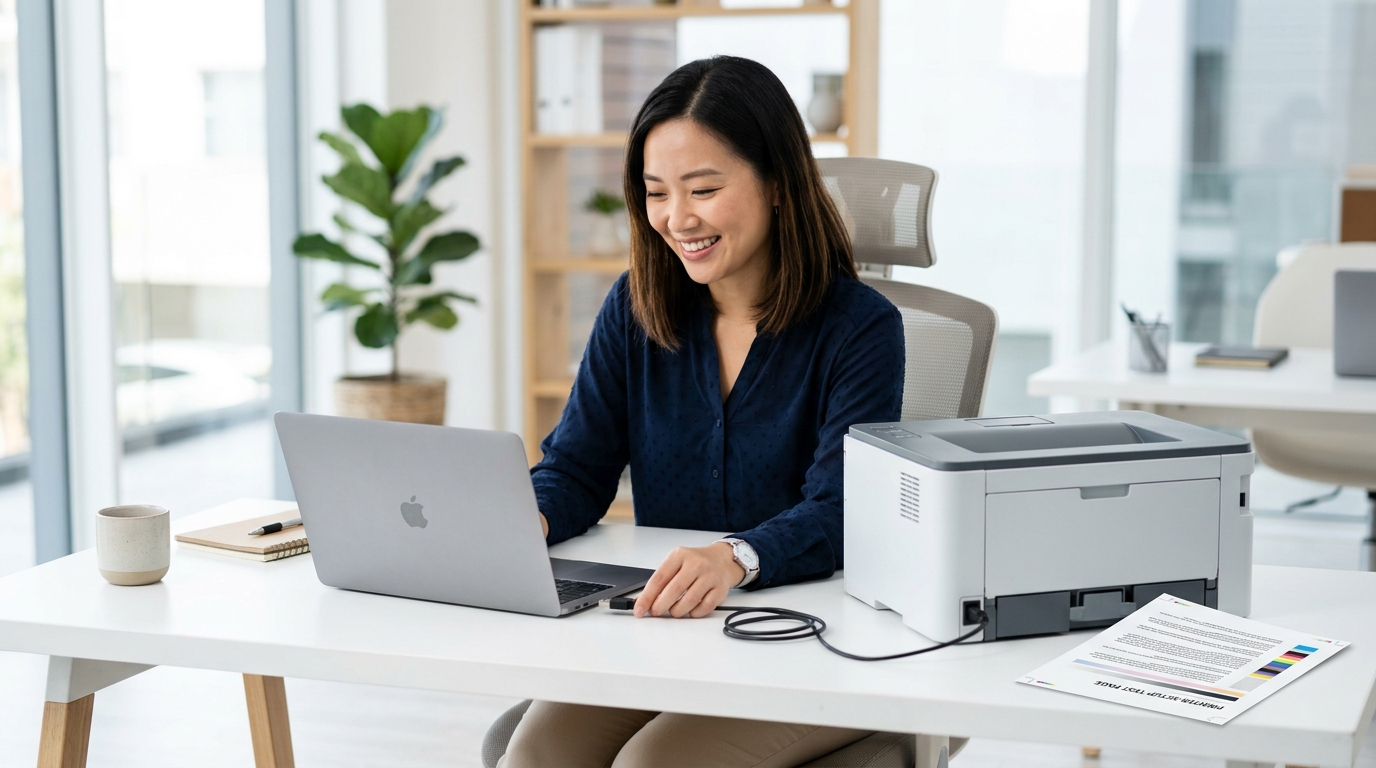
Follow these simplified diagnostic steps to configure your local connections, inspect spooler settings, and resolve persistent printer offline status errors.

Printer diagnostic setup helper

// Brand Support Setup Links

Verify physical router network lines
01

Check Cables & Wi-Fi

PHYSICAL LINK

Inspect physical USB printer cables or verify network router SSID pairing logs to ensure connection signal lines are active.

Action: Check Ports // SSID: Verify
Inspect PC driver files configurations
02

Clear Spooler Queue

REGISTRY RUN

Stop the Print Spooler service via services.msc, then delete temporary logs inside the PRINTERS cache directory.

Action: Purge Cache // CMD: services.msc
Identify official manufacturer drivers online
03

Download OEM Driver

INF MANUALS

Access matching printer model portals and retrieve the official manufacturer installation INF package configuration files.

Action: Load Literature // Source: Vendor URL
Restart spooler and execute test printing pages
04

Reset Spooler & Print

net start spooler

Re-initialize the print spooler service via Command Prompt, connect hardware lines, and execute a document test page.

Action: Submit Print Job // Status: Complete
Reference Literature Guide: PRN-WIN-V10
Open Detailed Printer Guide
[ MODULE 02 // NETWORK CONFIGURATION & DHCP LAYER ] DESKTOP INTERFACE: VERIFIED
✦ Wireless Network Guide

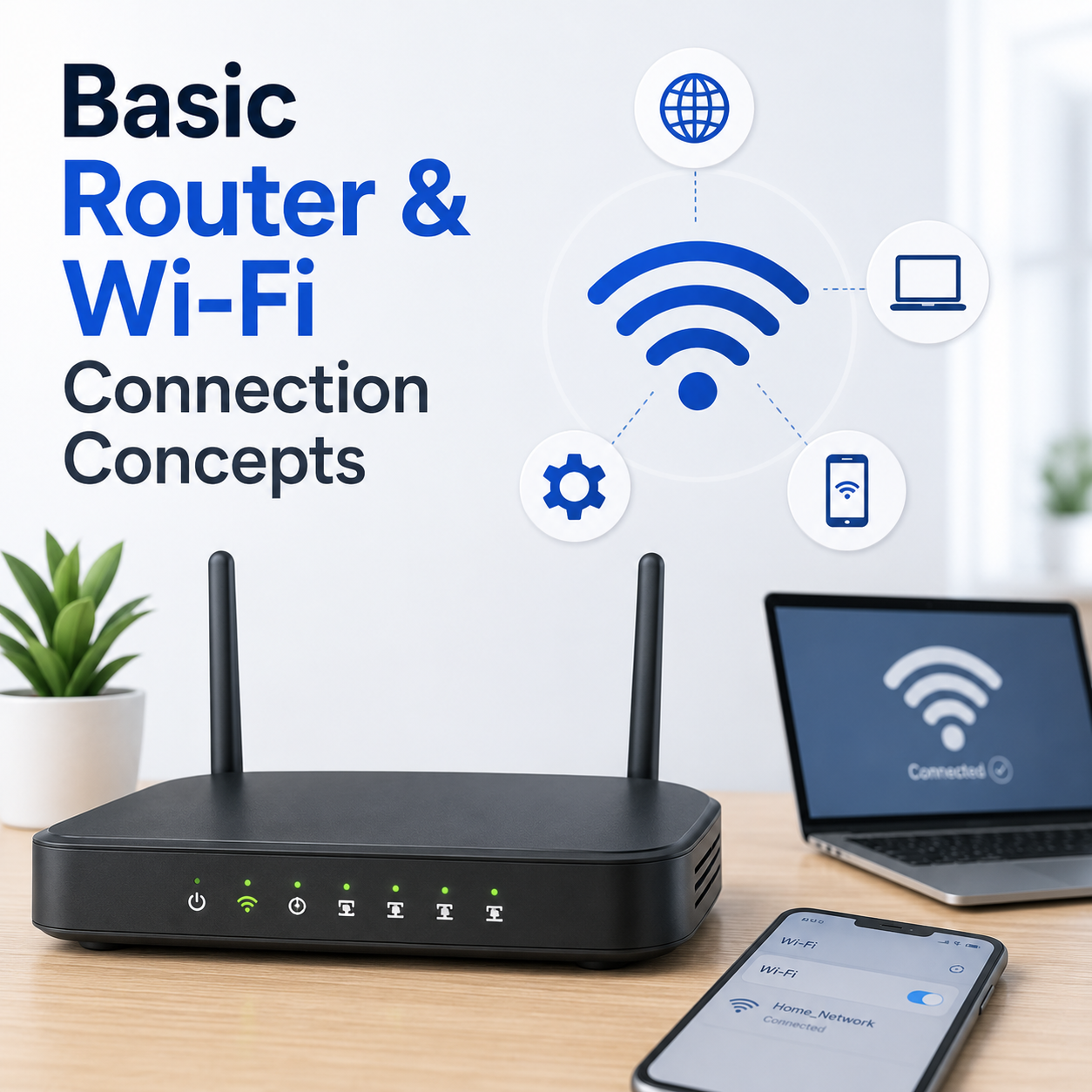
How router Wi-Fi setup works

Configure gateway IP settings, modify wireless SSID name profiles, and resolve network connection drops.

Router diagnostic setup helper

// Brand Support Setup Links

Verify router gateway connections
01

Access Gateway IP

IP GATEWAY

Enter your router's default address (such as 192.168.1.1) directly into browser search address bars.

Action: Open Browser // URL: 192.168.1.1
Verify administrator labels configurations
02

Enter Credentials

ADMIN AUTH

Input default admin login credentials matching details on your hardware device backing labels.

Action: Auth Login // Pass: admin/password
Setup SSID security protocols
03

Configure SSID

WPA3 SECURE

Create a new secure network profile name and set advanced WPA3 security passcode protocols.

Action: Modify Passphrase // Status: Secured
Flush DNS resolver caches
04

Flush DNS Resolver

TERMINAL RUN

Execute ipconfig/flushdns in system command tools to clear corrupt network gateway logs.

Action: Flush Cache // Cmd: ipconfig /flushdns
Reference Literature Guide: NET-DIAG-V8
Open Detailed Router Guide
[ MODULE 03 // PC SPEED & SYSTEM REGISTRY ] DESKTOP INTERFACE: VERIFIED
✦ Computer Optimization Guide

How PC performance works

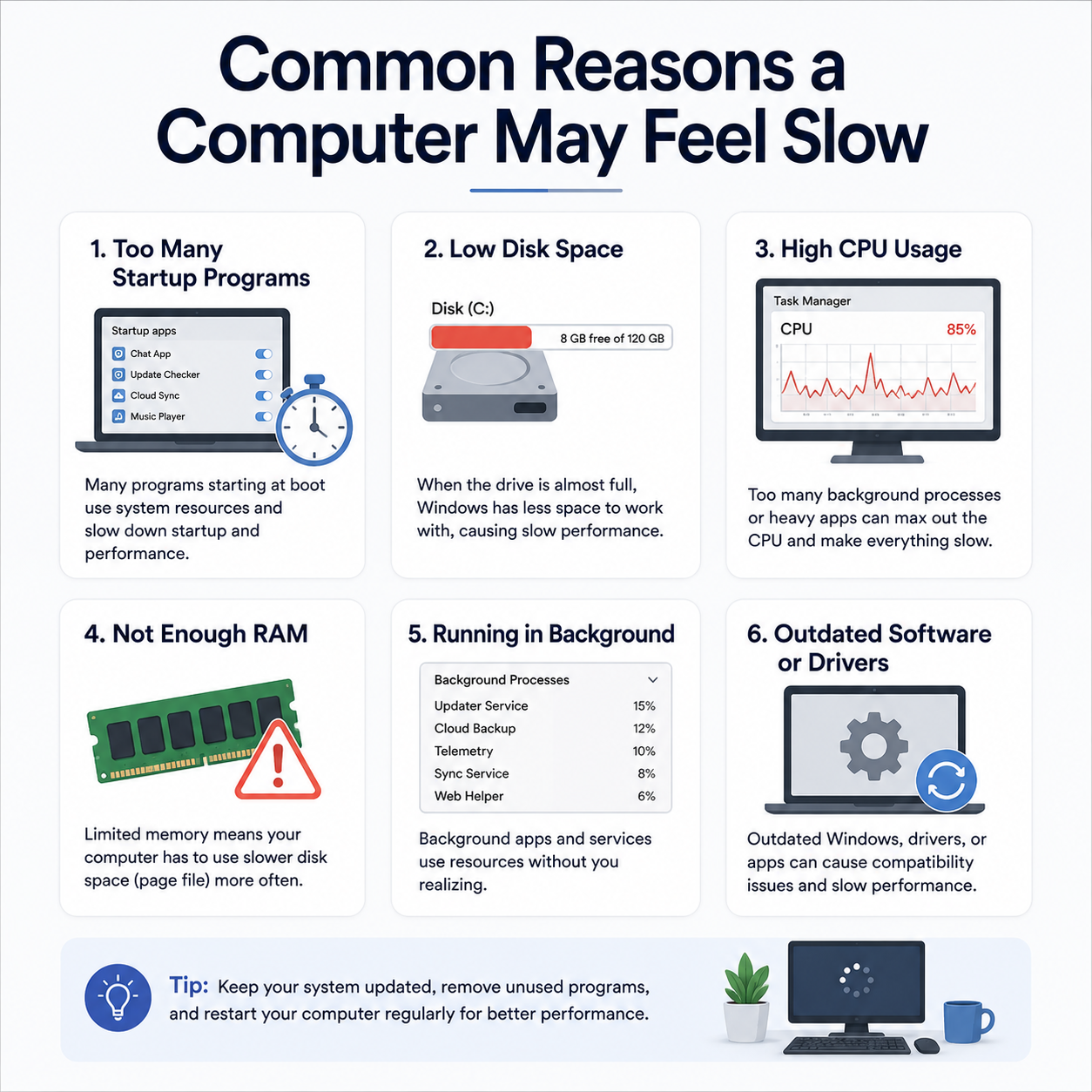
Learn how device drivers, startup logs, and allocation tables impact system speed and performance settings.

PC optimization setup helper

// Quick System Setup Links

Verify system device status flags
01

Device Manager

SYSTEM LIST

Press Win+X, select Device Manager, and inspect active configurations for yellow hardware warning flags.

Action: Inspect Hardware // CMD: devmgmt.msc
Update chipset driver installation packages
02

Update Chipset

OEM PACKAGES

Identify your system chipset hardware VID/PID labels, and install authorized setup INF driver updates.

Action: Load Chipset // Setup: INF Package
Configure startup application services
03

Manage Startup

TASK ALLOCATION

Open Task Manager, navigate to the Startup configuration panel, and disable resource-heavy programs.

Action: Halt Processes // CMD: taskmgr
Clear temporary directories and caches
04

Clear Temp Logs

CACHE PURGE

Remove temporary storage files and system caches from main system folders to free up disk storage.

Action: Empty Directory // Path: %temp%
Reference Literature Guide: SYS-DIAG-V12
Open Detailed PC Guide
[ MODULE 04 // EMAIL CLIENTS & SYSTEM UPDATES ] DESKTOP INTERFACE: VERIFIED
✦ Mail Clients & Update Setup

How email sync & updates work

Configure secure IMAP/SMTP mail server configurations and clean stuck Windows update caches.

Email sync setup helper
Specify server configurations
01

Specify Server Ports

PORT ASSIGN

Select Incoming server type as IMAP (port 993) and Outgoing mail server as SMTP (port 465) in configurations.

Action: Setup Ports // IMAP: 993 / SMTP: 465
Verify secure SSL/TLS configuration flags
02

Enable SSL/TLS

ENCRYPTION

Enable SSL/TLS security encryption flags in advanced mail client account properties to sync message directories.

Action: Secure Sync // Security: SSL/TLS
Generate account app passwords
03

App Passwords

MFA BYPASS

Create a unique 16-character passcode from mail host security settings if multi-factor verification is active.

Action: Generate Pass // Auth: MFA active
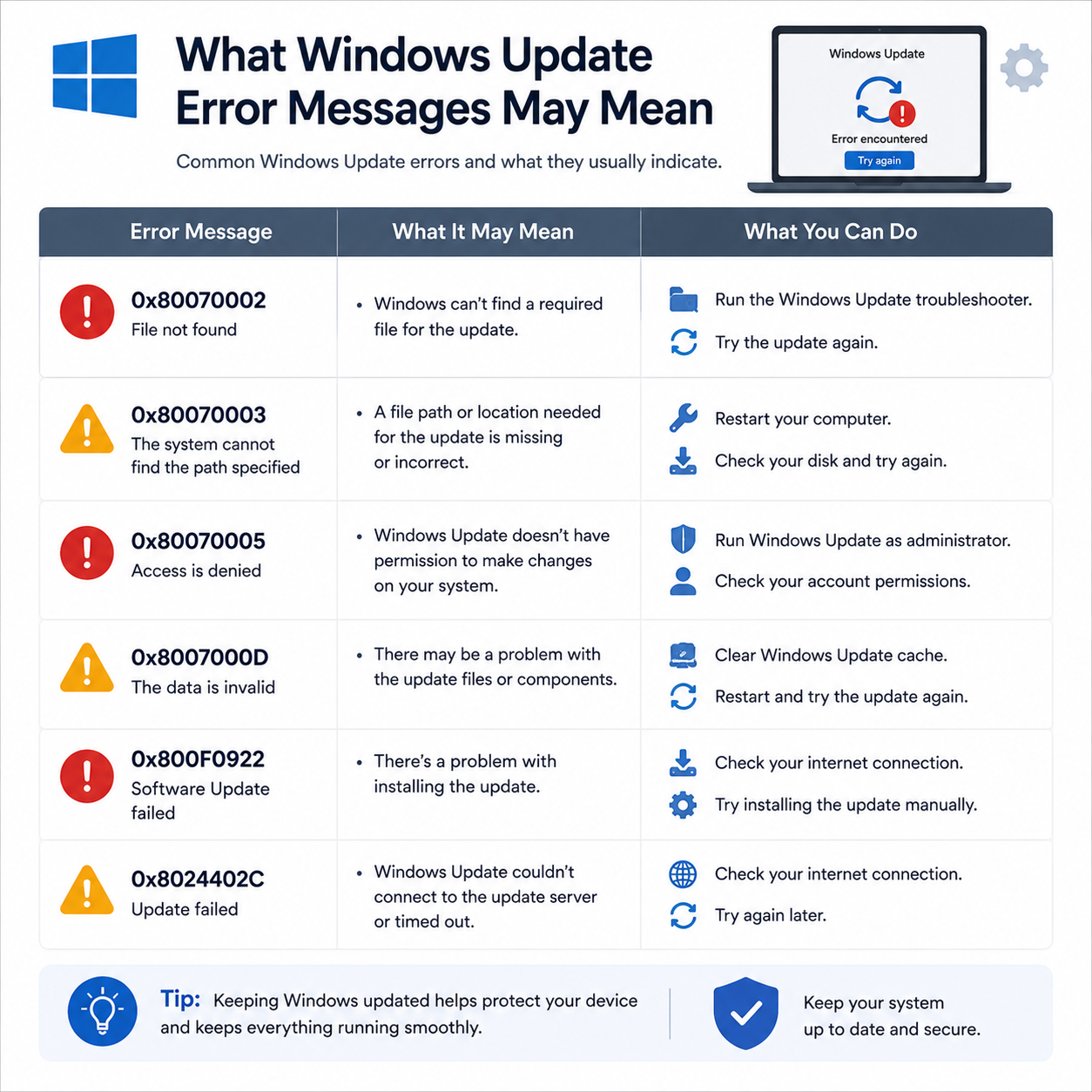
Clear Windows Update Cache
04

Purge Update Cache

OS REPAIR

Halt looping system update configurations, and delete downloaded update logs from System distribution paths.

Action: Reset Updates // Cmd: net stop wuauserv
Reference Literature Guide: EML-DIAG-V9
Open Detailed Mail Guide
[ ABOUT LIBRARY // LEARNING INTRO ] CONTENT STATUS: EDUCATIONAL
✦ About This Blog

A simple place to learn device basics.

My Guiding Pilot shares easy reading guides about printers, routers, email sync, PC performance, and Windows updates. Every article is written for learning only, without technical pressure or support-style claims.

Concept-First Explanations

We explain what settings, alerts, and device messages usually mean in simple, everyday language.

Independent Learning Library

Our content is created strictly as an educational reference, not as phone support or repair service.

No Downloads or Remote Access

We do not provide software files, remote access utilities, paid tool packages, or direct device repairs.

Structured Reference Scope

Our reference guides detail printer settings, local Wi-Fi router setup, email sync ports, PC optimization, and Windows Update diagnostics.

Educational Disclaimer

My Guiding Pilot is an independent learning blog and is not affiliated with, endorsed by, or representing any device manufacturers or official support services.

My Guiding Pilot educational learning desk
Library Diagnostics
100% EDUCATIONAL
GUIDES PORTAL: ACTIVE (YES)
PHONE SUPPORT: DISABLED (NO)
REMOTE ACCESS: BLOCKED (NO)
ACCESS LICENSE: FREE (YES)
[ FAQ MODULE // DYNAMIC ANSWERS ] STATUS: EDUCATIONAL
✦ FAQ Database

Questions users usually ask first.

Select a query to view its verified educational breakdown and source literature diagnostics.

No. This website is an educational reference database. It shares runbooks and self-guided diagnostics only. We do not offer phone support, remote access connections, software downloads, or technician dispatching.

You can read beginner-friendly guides about printer basics, router and Wi-Fi concepts, email access configurations, PC speed optimization, and Windows updates.

Yes. Printer articles cover fundamental concepts such as default printer status offline, print job queues, network spoolers, and interface cabling.

Yes. Windows Update articles outline concepts like pending updates, installation loops, restart settings, and update registry configurations.

No. This website is for self-directed reading and educational awareness only. We do not provide software tools, paid troubleshooting services, or technician support.

Yes. Every guide is written in plain, jargon-free English and features structured checkmark bullet lists alongside verified OEM primary reference citations.

[ BLOG MODULE // LATEST LEARNING GUIDES ] STATUS: PUBLISHED
✦ Latest Articles

Simple reading guides for common device topics.

Explore educational articles about printers, Wi-Fi router setup, email sync ports, slow computers, and Windows update messages.

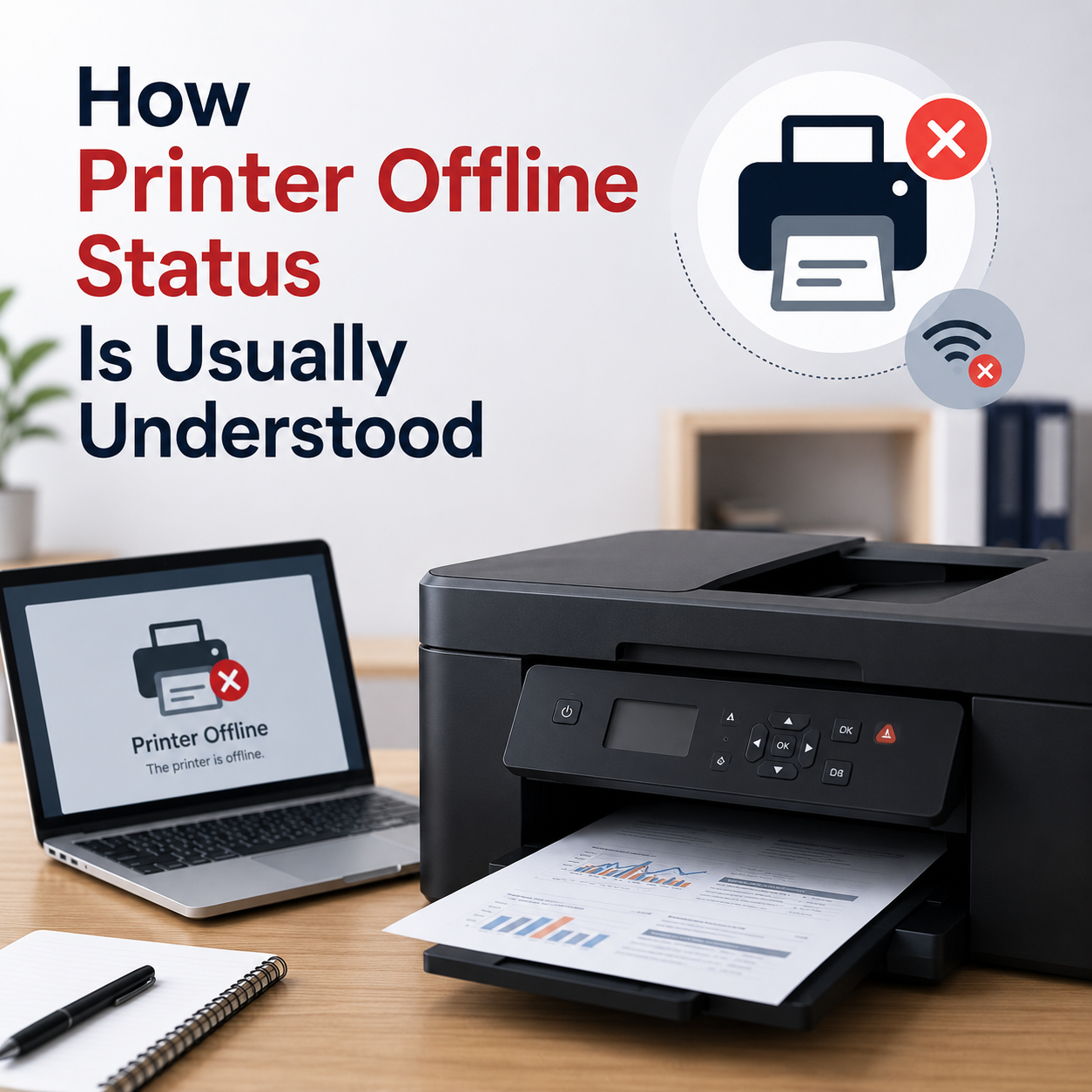
How Printer Offline Status Is Usually Understood
Printer Learning 6 min read

How Printer Offline Status Is Usually Understood

Printer offline status usually means the computer cannot communicate with the printer at that moment. This article explains how printer visibility, print queues, Wi-Fi connection, default printer settings, and driver communication are commonly understood in Windows.

01 / Status

Learn why a visible printer may still appear unavailable or offline.

02 / Queue

Understand how pending documents can affect normal printing behavior.

03 / Network

Read how Wi-Fi, router visibility, and device connection paths matter.

04 / Driver

Learn how drivers help Windows communicate with printer features.

What this guide covers:

  • Windows "Printer Offline" meaning
  • Paused vs driver unavailable status
  • Wi-Fi printer offline triggers
  • Print queue and default settings
Source: Microsoft Support Read Full Article
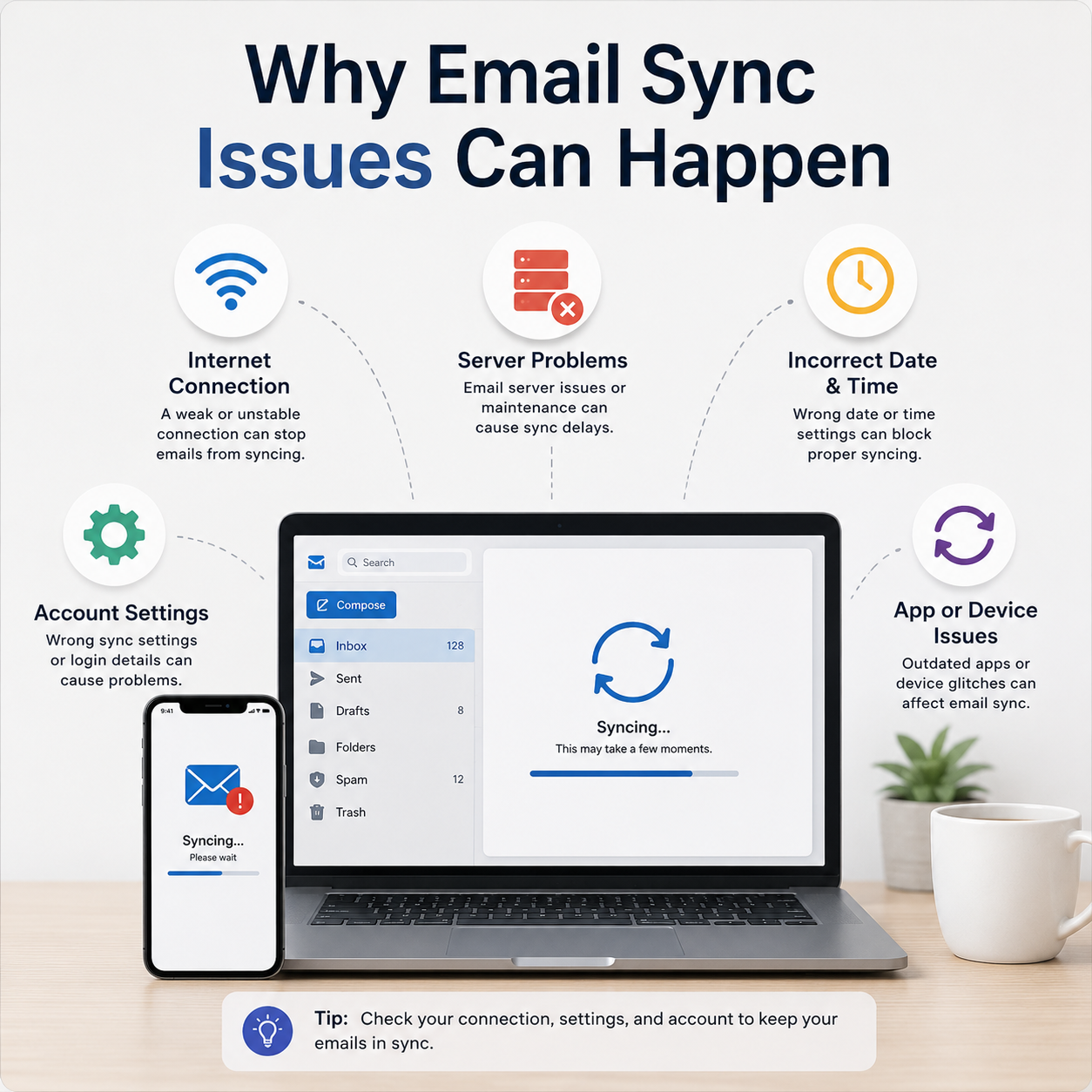
Why Email Sync Issues Can Happen
Email Basics

Why Email Sync Issues Can Happen

Read how inbox folders, account access, sync settings, spam folders, and mail app behavior are commonly understood.

Google Help
// Full Article Archive

Browse all educational device guides.

See All Articles